The Invoice Hub provides a streamlined way to approve invoices within the StrataMax Portal, making payment management clear and efficient for committee members. It centralises the approval process so you can handle invoices quickly and confidently.
As an Approver, you have full visibility of each invoice, including a scanned copy for reference. You can request updates to account codes, raise queries with your Strata Manager or fellow Approvers to clarify details, and complete approvals to ensure payments are processed without delay.
Invoice Hub Approver Video
If you would prefer to watch our in-depth video covering the Invoice Hub, please click here.
Navigation
There are options available to search and locate invoices and view history. You can clear the filter by clicking on the x button.
Filter by Building: Type to search. (This will only be displayed if you are an approver in mulitple buildings).
Filter: Type to locate a creditor or invoice amount or invoice number.
Sort by: There is the option to sort by Invoice Date, Creditor Name, Expense Account, Amount & Work Orders / Non Work Orders.
Show:
Mine: Invoices waiting for your approval.
Active: All invoices currently uploaded awaiting approval (as an approver you may have already approved these).
All: All invoices uploaded for approval in the last 2 financial years.
Remember: Tick Remember for the options to be retained.
Items per page: To increase the number of invoices, adjust the Items per page. This can be expanded to 200.

Please note: If you are logged in on a mobile device, a reduced number of columns are displayed depending on your device. Select the down arrow on an invoice to view additional details.

How to Approve Invoices
Once you have viewed the outstanding invoices awaiting your approval, you can approve multiple invoices at once or one at a time.
- Click on the checkbox to the left of the outstanding invoice or click the top checkbox to approve multiple invoices.

- To view the original invoice document click on the icon. (Invoices can be previewed without pop-up blockers or a download option will be available).

- To view recent creditor invoice history click on the icon - this is useful if there is a potential duplicate invoice detected.


- Select Approve Selected. The number of selected invoices that will be approved, will be displayed next to the button.

If you wish to view more details on all invoices, click on the down arrow to expand, all invoices can be expanded at once.

If you do not wish to approve an invoice, you will need to raise a query on the invoice to the manager. Refer to How to Query Invoices below.
How to Query Invoices
To leave a Query (note) on an outstanding invoice to the Strata Manager, all Approvers, or a specific Approver. This will place the invoice on hold until the Query has been replied to, then further action can be taken.
- Click on arrow to expand invoice details to send or reply to a query.
- Click Start Discussion and select who to raise the query with from the drop down.
When raising and responding to a query, if there are multiple approvers, the @ symbol will be available so you can select the approver to direct the query to.
- @Manager – The query will be sent to the manager only.
- A specific approver – The query will be sent to the selected approver only.
- All – The query will be sent to the manager as well as all the approvers of the invoice.

All queries will be visible by the manager and approvers including future invoice hub approvers.

When a query is directed to you, the below icon will appear so you can review and respond if required.

Enter the query message you want to send and click on the send/plane button or press <Enter>.
Note: When an approver sends a new query or replies to an existing invoice query while the invoice is at their approval layer, the invoice will be placed on hold. The approver whose query placed the invoice on hold, will have to approve the invoice for it to progress further in the approval process.
View Invoice History
History is available when All is selected. Approved invoices will have a tick next to them.

Settings
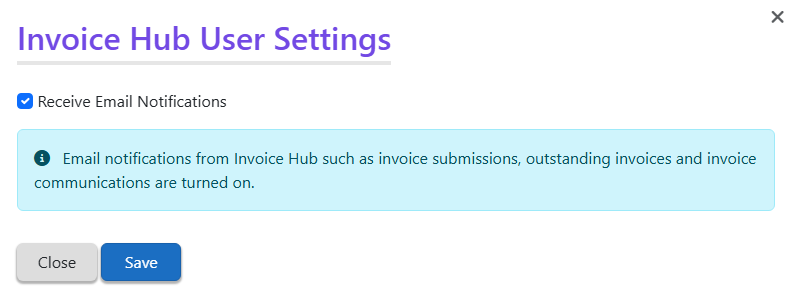
The option to configure to Receive Email Notifications can be selected. Email notifications from Invoice Hub such as invoice submissions, outstanding invoices and invoice communications can be turned on or off.

Invoice Hub Approver FAQ's
Q. For multi expense invoices how do I review the expenses?
A. Click on the down arrow to expand the invoice details, under the heading Creditor Invoice Line Items the expenses will be listed and hover over the icon to display the Current Year Actual and Current Year Budget.

Q. Can we edit the expense account for an invoice?
A. Send a Query to your manager who can complete this. This is a feature we will look to introduce at a later stage.
Q. How can I view the Work Order referenced on an invoice?
A. If the Work Order is uploaded to the Portal, check in Reports & Documents to view the Work Order (this can be configured differently by managers).
Q. A potential duplicate invoice was detected.
A. If the creditor account, amount and invoice number is the same this message will appear for your review.
Q. What do the icons mean?
A. If you hover over the icon a tool tip will appear.
 |
Linked to Work Order |
 |
Invoice awaiting final approval by other approvers |
 |
Creditor Invoice History - view the last 5 invoices |
 |
View document uploaded by manager |
 |
Invoice is approved |
 |
There is an invoice note you may want to respond to |
 |
There is a potential duplicate |
 |
View Current Year Actual vs Current Year Budget |
 |
View Financial Statement |
Q. Why is the invoice icon not coloured blue?
A. If the document is not available to be viewed this will be blue. Contact your manager to obtain a copy.
Q. Why can I not view historical invoices?
A. The invoice hub displays invoices for the current financial year and last year. New developments and Buildings that may have changed managers may display less history than this.
Q. I raised a query by mistake how do I delete it.
A. Queries cannot be deleted, you can raise another query to confirm it was a mistake.
Q. I approved an invoice by mistake, how do I undo this?
A. Once an invoice has been approved, you will need to contact your manager for any additional adjustments, or to stop payment.