If you have received a meeting notice or agenda and want to vote online for the first time, here is how to get set up and cast your vote. You will need a StrataMax Portal account with your property linked.
1. Create your Portal account
If you do not have a StrataMax Portal account yet, create one first. Go to the StrataMax Portal and click Create an account, then follow the steps in the email you receive. See Creating a StrataMax Portal Account. Use the same email address your strata manager has for you on the roll, so your property links automatically.
2. Check your property is linked
Log in and confirm your property appears under My Properties. If you see no properties, your email may not match the one on the roll. Ask your strata manager to add or update your email on your lot.

3. Open VoteMax and select the meeting
Once your manager has opened the meeting for voting, a VoteMax tab appears. Click VoteMax, then click Select next to your meeting to see the agenda, motions, and meeting details.

4. Cast your votes
Click Cast Votes, confirm the capacity in which you are voting, then vote Yes, No, or Abstain on each motion. If you own more than one lot linked to your account, you vote once and your vote applies to all of them.

5. Declare your votes
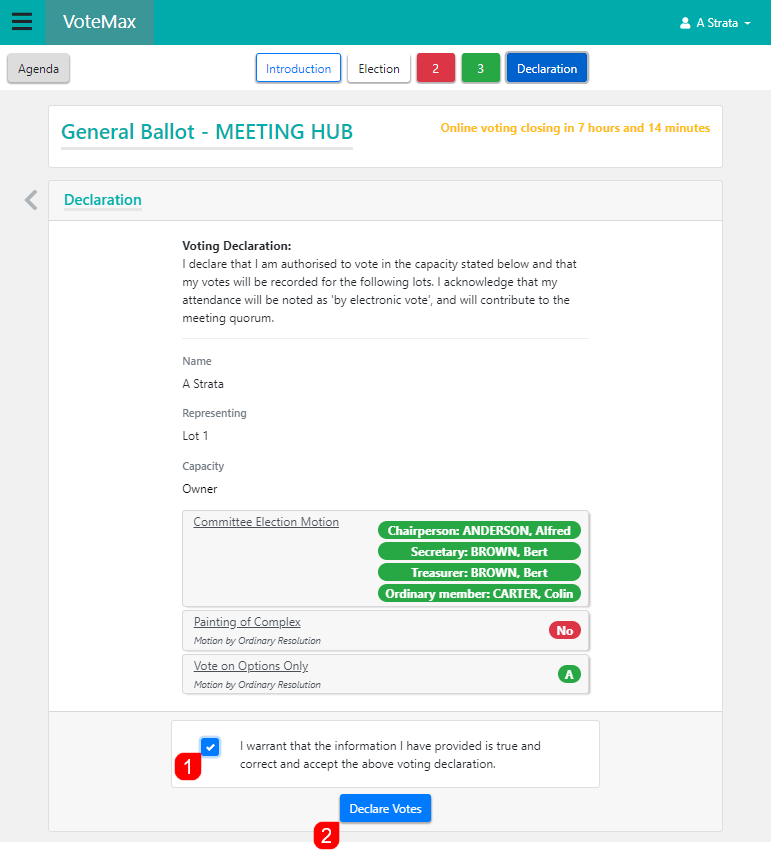
After voting on every motion, tick the declaration box and click Declare Votes. Your vote is only counted once declared. You will receive a confirmation email.
For the detail on each motion type, including motions with alternatives, options only, and committee elections, see Casting Votes.