If you cannot see VoteMax, cannot log in to vote, or you voted but it does not look like your vote was counted, work through the checks below. Most voting problems fall into one of these groups.
I can't see the VoteMax tab
The VoteMax tab only appears when there is an active meeting or ballot for your property and your access is set up correctly. Check the following.
- You are logged in to the right Portal account. Use the email address your strata manager holds for you on the roll. If you have more than one property, the meeting may be under a different account or email.
- Your property is linked to your account. If you log in and see no properties, your email may not be linked yet. Ask your strata manager to add your email to your lot on the roll.
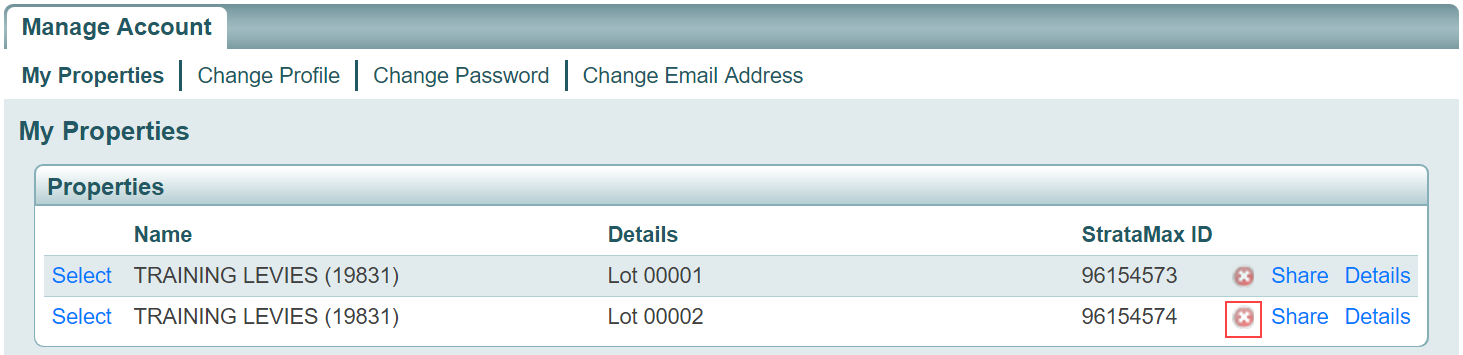
- The meeting is open for voting. The tab appears once your manager sets the meeting to Active and the voting window is open. If voting has not opened yet, or has closed, the tab will not show.
- You are set up to vote for the lot. If you are a committee member or nominee but not the owner on the roll, your manager needs to set you up as a Non-Owner Office Bearer ('Nominated by Lot') before VoteMax appears. Ask your manager to check this.

If all of these look right and you still cannot see VoteMax, contact your strata manager to confirm the meeting is active and your access is set up.
I was sent a different voting link
Some buildings use StrataVote, or another online voting product, instead of StrataMax VoteMax. If your manager sent you a voting link that is not the StrataMax Portal, you will not see a VoteMax tab. Use the link your manager provided, and contact your manager if it does not work. See VoteMax FAQ and Quick Answers for more on the difference.
I can't log in to vote
The meeting email takes you to the Portal sign-in. You still log in with your StrataMax Portal email and password.
- Forgot your password, or it is not accepted. Click Forgot Password on the login screen, enter the email your account uses, and follow the prompts.
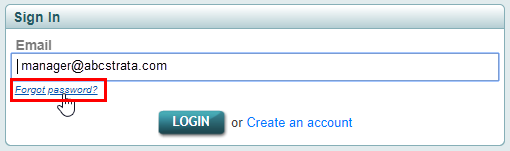
- Locked out. For security, your account is blocked for a short time after several failed attempts. Reset your password, wait a few minutes, then try again.
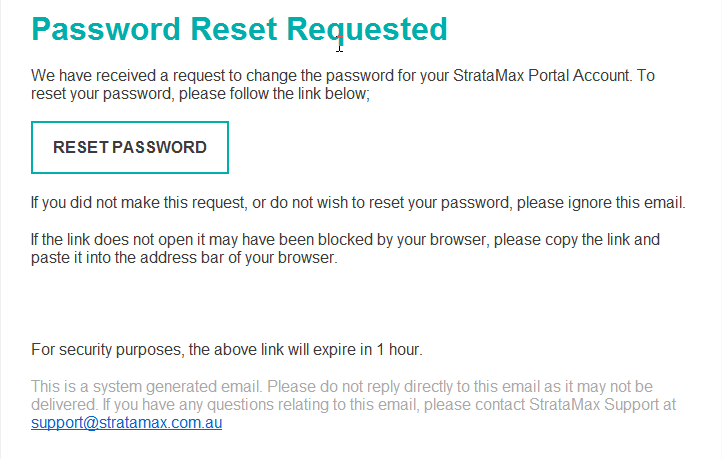
- Use the right email. Log in with the email your manager holds for you. A different email will not show the meeting.
If voting closes soon, do the password reset straight away. If you still cannot get in before the window closes, contact your strata manager, who may be able to record your vote or advise on the window. See StrataMax Portal Login Troubleshooting.
I voted, but it does not look like it was counted
This is usually one of two missed steps.
- Open the meeting and click Cast Votes. Selecting a meeting on its own does not record a vote. You must click Cast Votes and then vote on each motion.

- Declare your votes. After voting on all motions, tick the declaration box and click Declare Votes. Your vote is only submitted once you declare it.
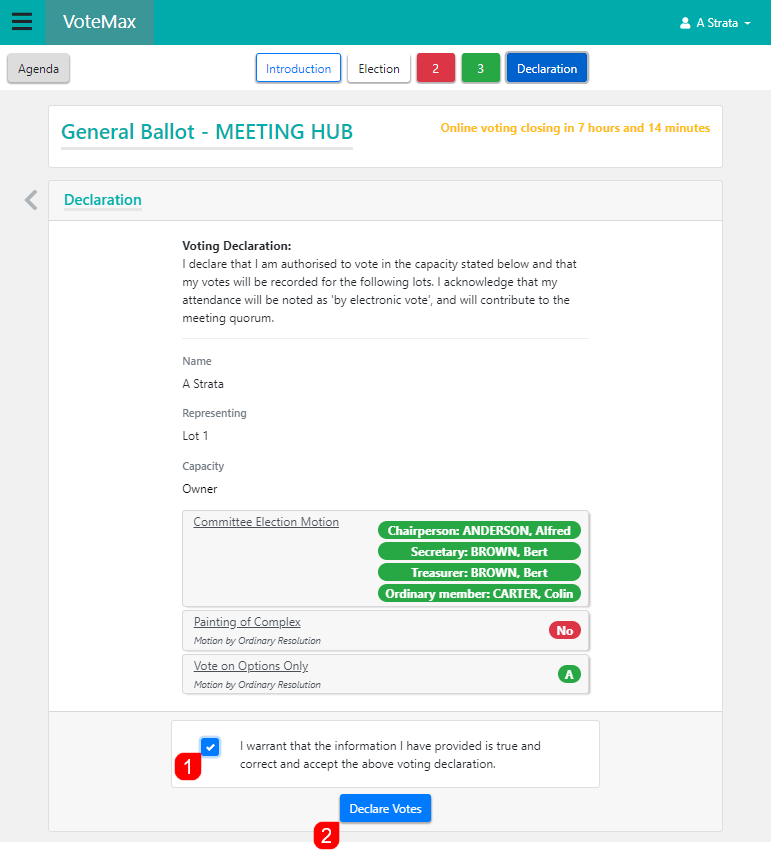
- Check for the confirmation email. When your votes are declared, all owners of the lot receive an email confirming the votes submitted. If you did not get one, your votes may not have been declared.

You can change your votes any time before the voting window closes, even after declaring them. Open the meeting, click Cast Votes, choose the motion, click Change, update your vote, then declare again.
I can't open or download a motion attachment
Attachments open or download in your browser. If nothing happens, allow pop-ups for the Portal site, or use the download link. See Pop Up Help.
Still stuck?
Contact your strata manager to confirm the meeting setup and your access, or contact StrataMax Support for Portal login and account problems. See Who Do I Contact?.