This article will help you resolve the most common issues when logging in to the StrataMax Portal, including forgotten passwords, locked accounts, and problems with saved passwords in your browser.
TIP! Use the Ctrl + F keyboard shortcut to display your browser's search functions to look for key words on this page!
Forgotten Password
If you have forgotten your StrataMax Portal password, you can reset it yourself from the login page.
- Go to the StrataMax Portal login page.
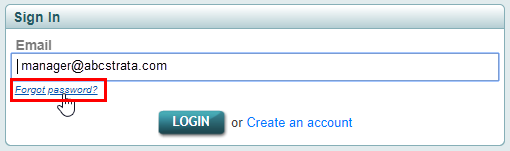
- Enter your email address into the Email field.
- Click the Forgot password link, then click Send Email.
- Open the email and click the password reset button, then follow the prompts to set a new password.
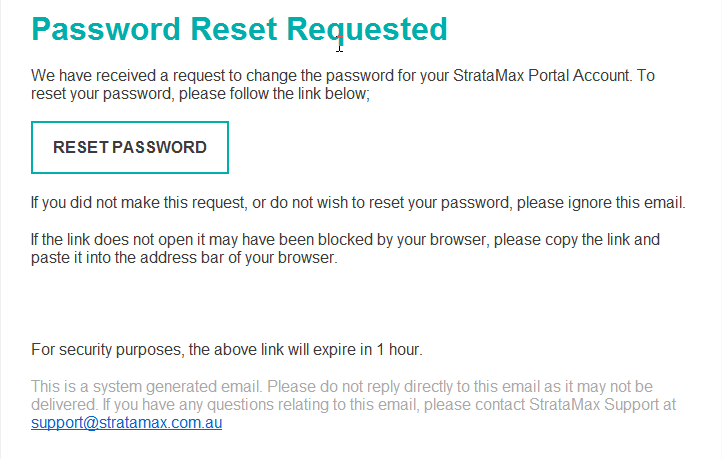
The password reset link will expire 60 minutes after it is sent. If the link has expired, simply repeat the steps above to request a new one.
Account Locked After Too Many Attempts
If an incorrect password is entered too many times, your account will be temporarily blocked as a security measure.
A blocked account will unlock automatically after 30 minutes. You do not need to contact anyone. Simply wait, then try again, or use the Forgot password link above to set a new password in the meantime.
My Password Doesn't Work, but I'm Sure It's Correct
The most common cause of repeated login failures is an old password saved in your internet browser. If you changed your portal password at some point, your browser may still be automatically filling in the old one, which can also lead to your account being locked.
- Click into the Password field and delete anything your browser has pre-filled.
- Type your current password manually, taking care with capital letters and similar-looking characters.
- If the login succeeds, update or delete the saved password in your browser's password settings so this doesn't happen again.
If you are unsure whether your browser is the cause, try logging in using a private/incognito window, which will not use any saved passwords. To open one, press Ctrl + Shift + N (Chrome or Edge on Windows) or Cmd + Shift + N (Mac). If that works, the saved password in your normal window is the culprit.
If you know your current password and simply want to change it, see Change Password.
I Didn't Receive the Password Reset or Account Creation Email
First, confirm a reset email is actually being sent: on the login page, enter your email and click Forgot password. If you see "Your account does not exist", the address has a typo or your account is under a different email, so there's nothing to receive yet.

If you see "To request a password reset…", your account is valid; click Send Email. Check your spam or junk folder first, and confirm you used the email address your account was created with. For the full fix, including adding no-reply@stratamax.com to your safe senders, see Not Receiving StrataMax Portal Emails.
The Page Says 'Processing, please wait…' or Won't Load
If the login page hangs, freezes, or repeatedly returns you to the login screen, the issue is usually with the browser or device rather than your account. Try these steps in order.
- Hard refresh the page. Hold Ctrl + F5 (Windows) or Cmd + Shift + R (Mac) to reload the page while ignoring the saved copy. On some laptops you may need to hold the Fn key as well (Fn + Ctrl + F5); if in doubt, use Ctrl + Shift + R.
- Clear your browser's cache and cookies. This removes outdated stored data that often causes login loops. See How to Clear Your Browser Cache and Cookies for step-by-step instructions for Chrome, Edge and Safari.
- Try a private/incognito window, which ignores saved passwords and cached data. Press Ctrl + Shift + N (Chrome or Edge on Windows) or Cmd + Shift + N (Mac).
- Try a different browser (for example Chrome or Edge), and make sure the browser is up to date.
- Try a different device or internet connection to rule out a local network issue.
- Restart your computer or device and try again.
If the issue persists across different browsers and devices, contact your strata manager so the issue can be investigated.
Can StrataMax Reset My Password for Me?
No. For security reasons, StrataMax staff and your strata manager are unable to reset, reinstate, or view portal passwords. The password reset process is self-service only, using the Forgot password link on the login page.
I Received a Security Alert Email (New IP Address Detected)
If you received a 'New IP Address detected' security alert email, see 'New IP Address Detected' Security Alert Email. In most cases it is harmless and no action is needed.
Frequently Asked Questions
Why does the portal lock me out as soon as I enter my password?
This is almost always caused by your browser automatically filling in an old saved password. Delete the pre-filled password, type your current password manually, and update your browser's saved password. A locked account unlocks automatically after 30 minutes.
I reset my password but the link in the email doesn't work.
Password reset links expire 60 minutes after they are sent. Request a new reset email from the login page and use the link straight away. If you use a work email address, the email may be delayed by your organisation's spam filter past the 60-minute window. Request it only when you are ready to act on it.
I clicked Forgot Password but no email arrived.
Check your spam or junk folder first, and confirm you used the same email address your portal account was created with. You can re-request the email from the login page at any time.
How long am I locked out for?
30 minutes. The account unlocks automatically. There is nothing you need to do, and no one needs to unlock it for you.
Can my strata manager tell me my password?
No. Passwords are not visible to your strata manager or to StrataMax. Use the Forgot password link to set a new one.
The login page won't load or keeps refreshing, what should I do?
Try a hard refresh (Ctrl + F5 on Windows, Cmd + Shift + R on Mac), then clear your browser cache and cookies, then try a private/incognito window or a different browser. If the problem continues on multiple browsers and devices, report it to your strata manager so it can be investigated.